Attendance Kiosk
The TimePally Attendance Kiosk is the Android app that members tap at the start and end of the day to clock in and out. One terminal handles facial enrolment and verification for everyone in the location; additional terminals at the same location handle verification only. The app works offline and uploads records automatically when the connection returns.
This section covers the app itself, how to install it, register a device, enrol faces, run daily check-ins and recover from common issues. For managing device records (renaming terminals, viewing activity, removing a device) from the web dashboard, see Devices.
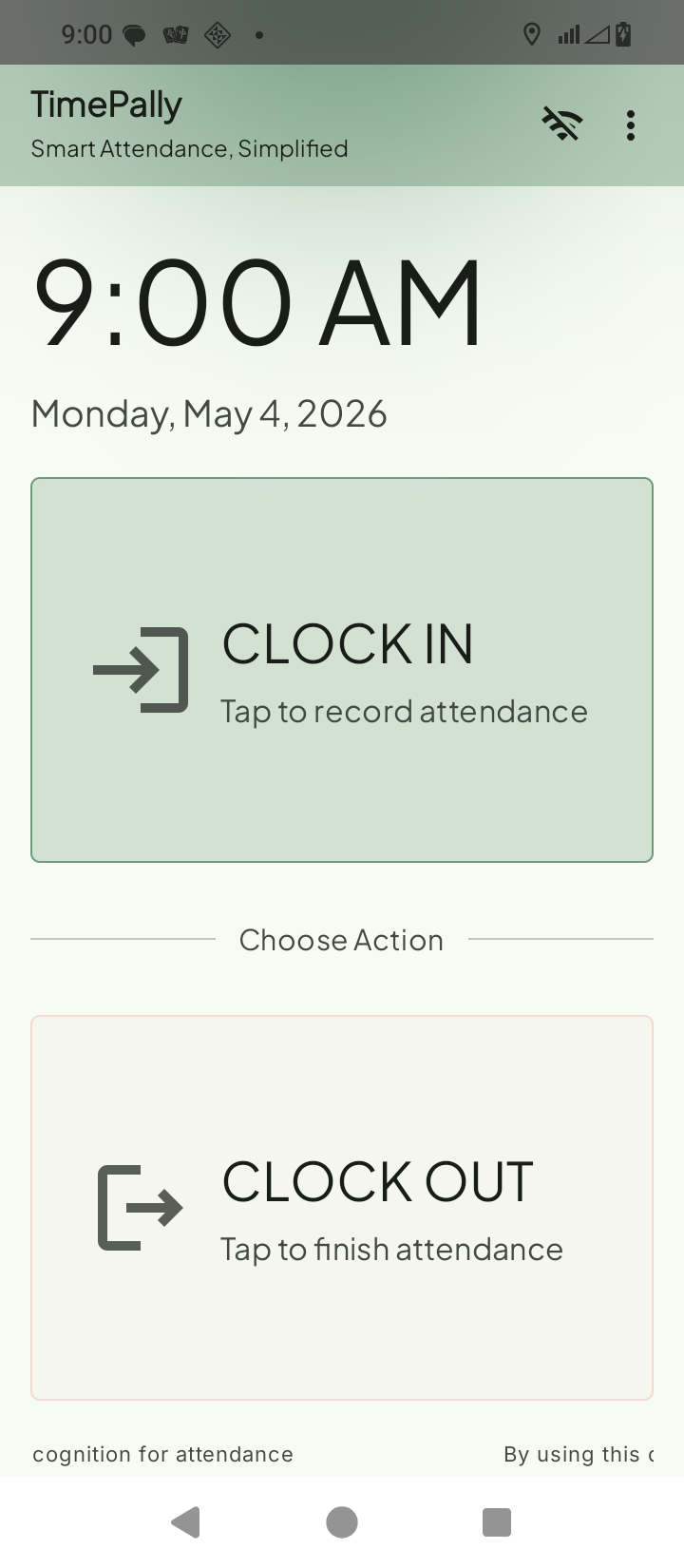
The home screen is intentionally minimal: one big Clock In card and one big Clock Out card, with a live clock and date above them. The app bar at the top carries the TimePally brand, a pending-sync badge (a small number with an upload arrow, visible only when records are waiting to upload), a network indicator (the Wi-Fi-off icon means the device is offline, clock-ins still capture and queue), and an overflow menu (⋮) that opens the rest of the app.
The overflow menu
Tap the three-dot icon in the top-right corner of the app bar to open the menu:
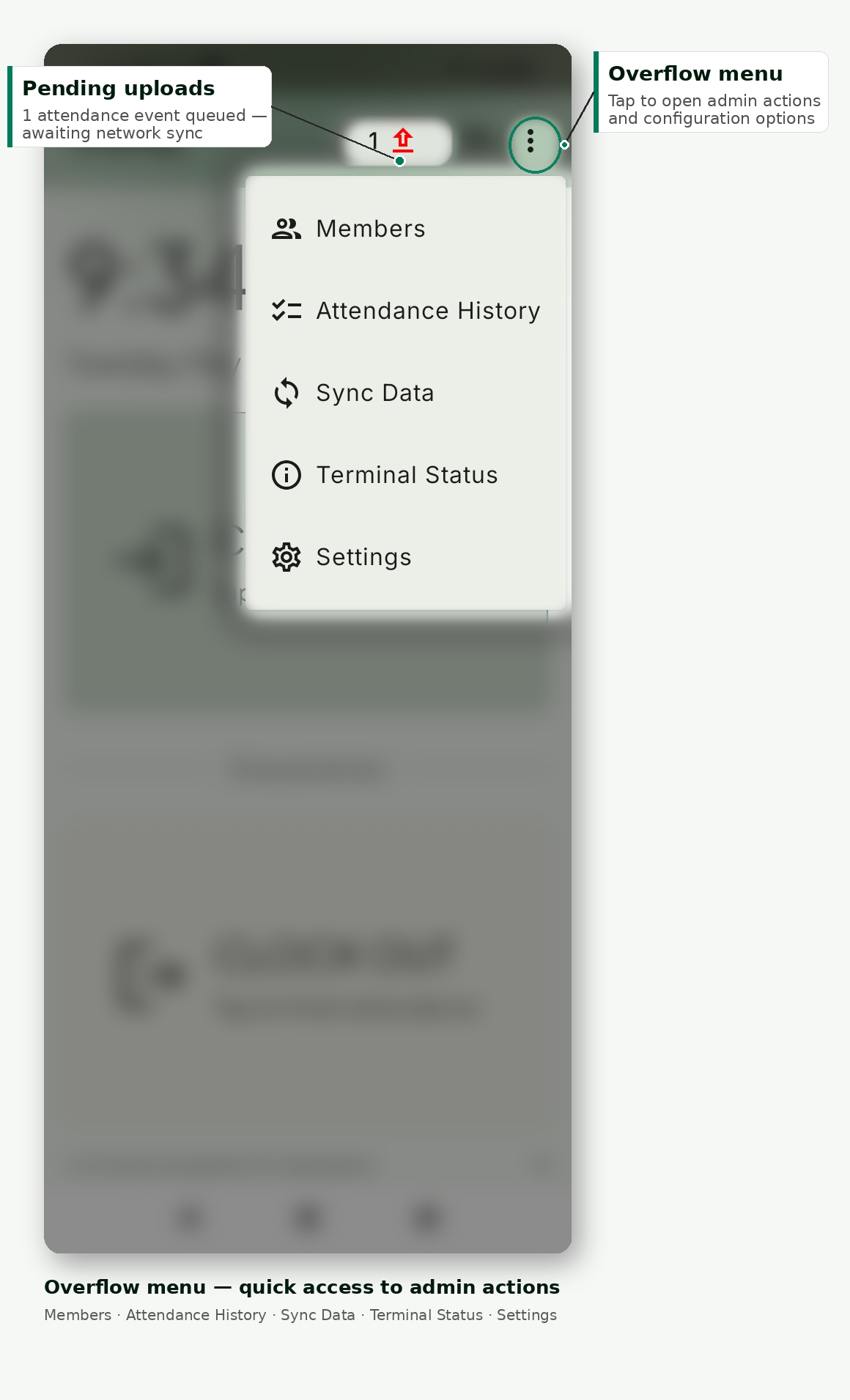
- Members : list of every member at this location, showing who’s enrolled and who isn’t. This is where you start a face enrolment on the Primary terminal. See Enrolling a Member’s Face.
- Attendance History : recent clock-in and clock-out events captured on this device.
- Sync Data : manual sync trigger plus a list of pending records waiting to upload. See Offline Mode & Sync.
- Terminal Status : the device’s identity card: organisation, location, role (Primary / Secondary), device ID, app version, and subscription status. This is where you copy the device ID when contacting support.
- Settings : appearance, legal notices, and the About page.
The badge to the left of the Wi-Fi indicator is the pending-sync count. When it’s hidden, everything is synced. When it shows a number, that many records are queued; they’ll upload automatically as soon as connectivity returns, or sooner if you tap Sync Data and force a push.
Hardware requirements
- Android 7.0 (Nougat) or newer. The app targets
minSdk = 24and will not install on older devices. - Front-facing camera. Required for face capture and verification.
- 3 GB RAM or more, dual-core CPU or better. The app runs comfortably on budget devices: Tecno Spark, Infinix Hot, Itel A-series, and any modern tablet.
- A stable mounting position. A wall mount or locked tablet stand at face height is strongly recommended. See Best Practices.
Offline-first
The kiosk keeps working through internet outages. Clock-ins and clock-outs are queued on the device and synced automatically once the connection returns. The only operation that requires internet is face enrolment itself.
Pages in this section
- Installing the App: download, permissions, and the all-important battery-optimisation step.
- Registering a Device: pair a fresh install with your organisation using the 6-digit code.
- Kiosk Mode: lock the device to TimePally so members can’t switch to other apps or change settings.
- Primary vs Secondary Terminals: which device enrols faces and which only verify.
- Enrolling a Member’s Face: the single front-face capture flow done right.
- Daily Clock-In & Clock-Out: the print-friendly poster for the wall next to the kiosk.
- Offline Mode & Sync: how queued records reach the server.
- Troubleshooting: common symptoms and quick fixes.
- Best Practices: what we’ve learned from production deployments.