Offline Mode & Sync
The kiosk is designed to keep working through outages. The Wi-Fi can drop, the office router can be off all weekend, the data SIM can run out of credit, the app continues to accept clock-ins and clock-outs the entire time. As soon as a connection returns, every queued record uploads to the server automatically.
This page explains what to watch for in normal operation and what to do when something looks stuck.
How it works, in plain English
Each clock-in or clock-out is saved on the device immediately. If the device has internet at that moment, the record is uploaded to the server within a few seconds. If not, the record sits on the device in a queue and waits.
Sync runs in two places:
- While the kiosk app is open: the app tries to upload queued records every 30 seconds, and it uploads immediately the moment the device reconnects to the internet. This is the primary sync path. As long as the kiosk is the visible app on the screen (the normal state in Kiosk Mode), the queue drains continuously.
- If the app is fully closed: a 15-minute background safety net runs through Android’s WorkManager and drains any queued records whenever the OS allows. This covers force-stops, low-memory kills, and reboots before the kiosk is reopened.
In both paths, queued records upload in the same order they were captured.
Sync pauses when the app is sent to the background (Home button, app switcher, screen off). Clock-ins still get captured into the local queue, but they don’t upload until the app comes back to the foreground or the 15-minute safety net runs. Keep the kiosk pinned to the screen with Kiosk Mode so the foreground sync loops keep running.
The pending-sync badge
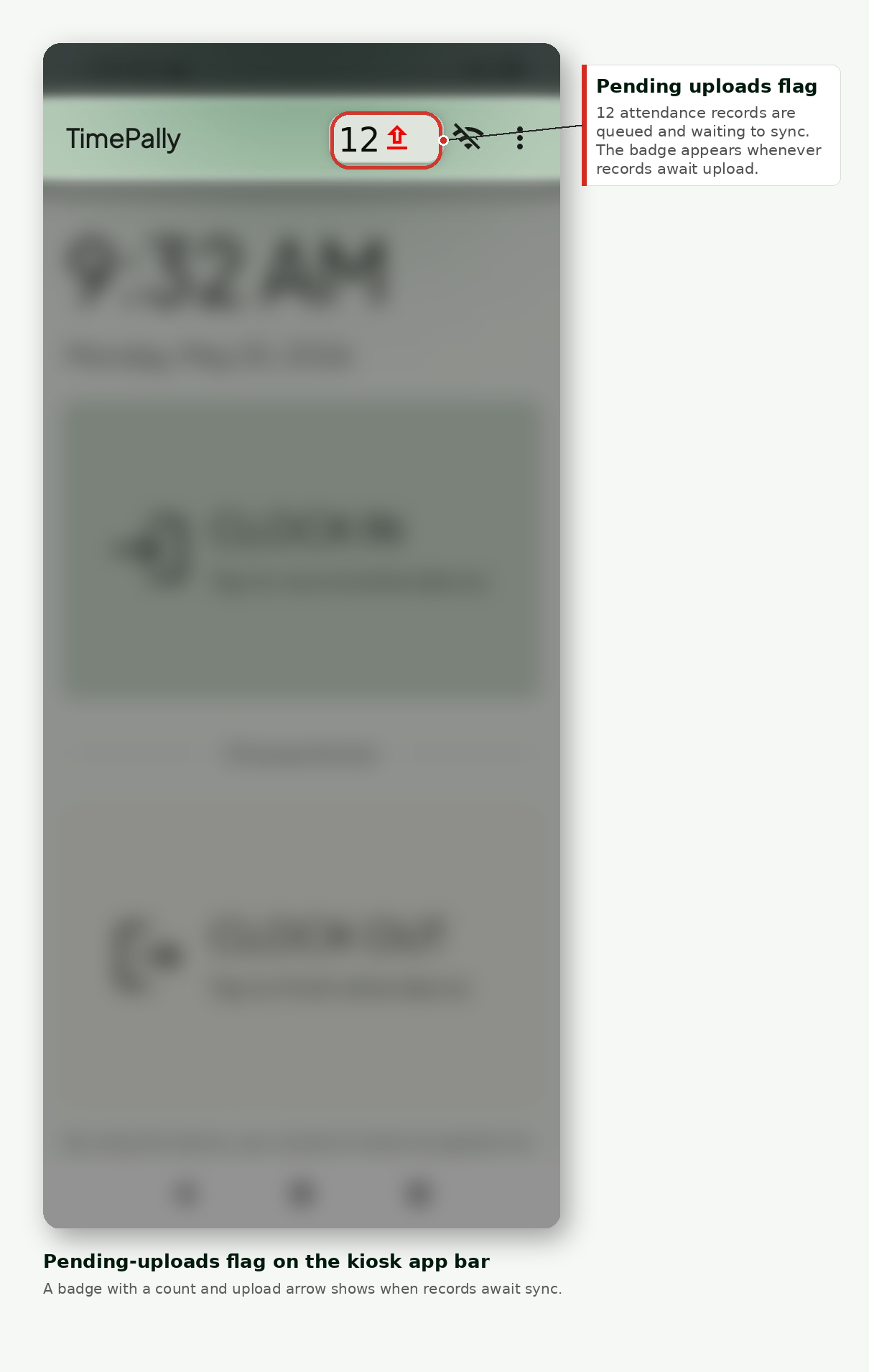
The kiosk home screen’s app bar shows a small badge with a number and an upload arrow whenever records are waiting to upload.
- Badge hidden: everything is up to date.
- 1 to 10: normal during a brief outage; should fall back to hidden within a few minutes of reconnecting.
- Stays visible for more than an hour: something is wrong. See the troubleshooting section below.
Manual sync
If you don’t want to wait the usual 30 seconds, you can force an upload:
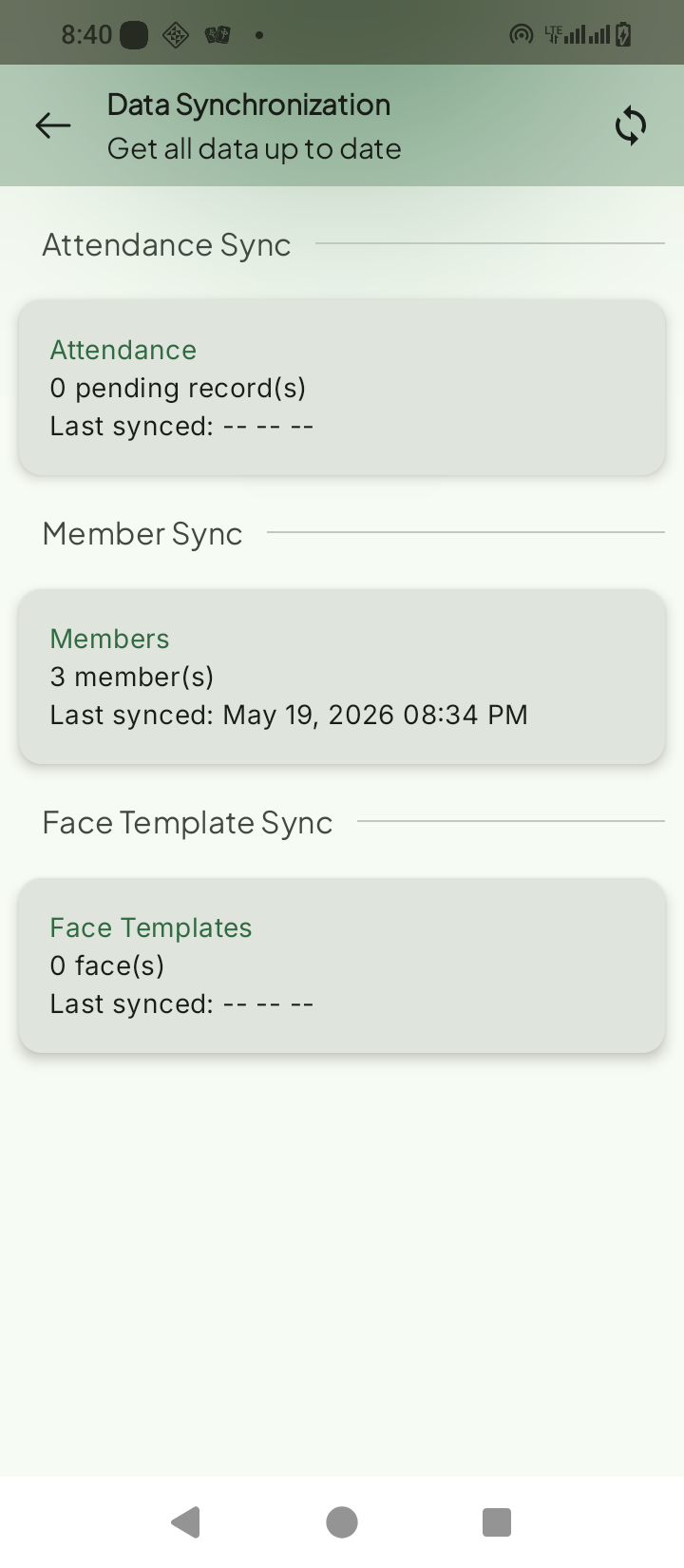
- From the kiosk home screen, open the overflow menu (⋮) and tap Sync Data.
- Tap Sync now.
- The screen lists each pending record and shows a green tick as each one uploads.
When sync looks stuck
If the pending count isn’t dropping, walk through this checklist in order:
- Check the kiosk is open and on-screen. If TimePally is backgrounded or the screen is off, foreground sync isn’t running. Tap the app icon (or wake the device) and watch the badge for a minute. Turn on Kiosk Mode to keep this from happening again.
- Check the internet. Open a browser on the device and load any website. If that fails, fix Wi-Fi or mobile data first.
- Force a sync manually. Overflow menu (⋮) → Sync Data → Sync now. This bypasses the 30-second loop and pushes everything immediately.
- Restart the app. Swipe TimePally out of the recent-apps list and reopen it. The sync loops re-initialise on launch.
- Still stuck after an hour? Open the overflow menu (⋮) → Terminal Status, note the device ID, and contact support with that ID and a rough count of pending records.
Records aren’t lost while they’re waiting in the queue. Even if the device is rebooted, the queue survives, the records pick up sync the next time the app opens.
When you’d intentionally go offline
You don’t normally need to do anything to “switch to offline mode”, the kiosk handles outages automatically. Two scenarios where admins sometimes go offline on purpose:
- Moving the device between locations. Power it down, move it, power it back on. Anything captured during transit (unlikely) syncs when it reconnects.
- Mobile-only sites without permanent Wi-Fi. The kiosk can run all day on a phone hotspot turned on twice a day for sync windows.
In both cases, the queue length will rise and then fall, that’s normal.