Kiosk Mode
Once a device is registered and enrolled, Kiosk Mode is what turns it from “a phone with TimePally installed” into a true unattended check-in terminal. Enabling it pins the app to the foreground, keeps the screen on, and blocks the Home button, Recents button, and notification shade. The device can only run TimePally until an admin turns Kiosk Mode off.
No special device provisioning, MDM enrollment, or admin app is required. Kiosk Mode is a single toggle inside the TimePally app’s Settings screen, available on any Android 7.0+ device.
What members see when Kiosk Mode is on
| State | Behaviour |
|---|---|
| OFF (default) | App behaves like any other Android app. Members can swipe up to Home, switch apps, change settings. |
| Toggle ON (first time per install) | Android shows a “Pin screen?” system dialog. The operator must tap OK once. |
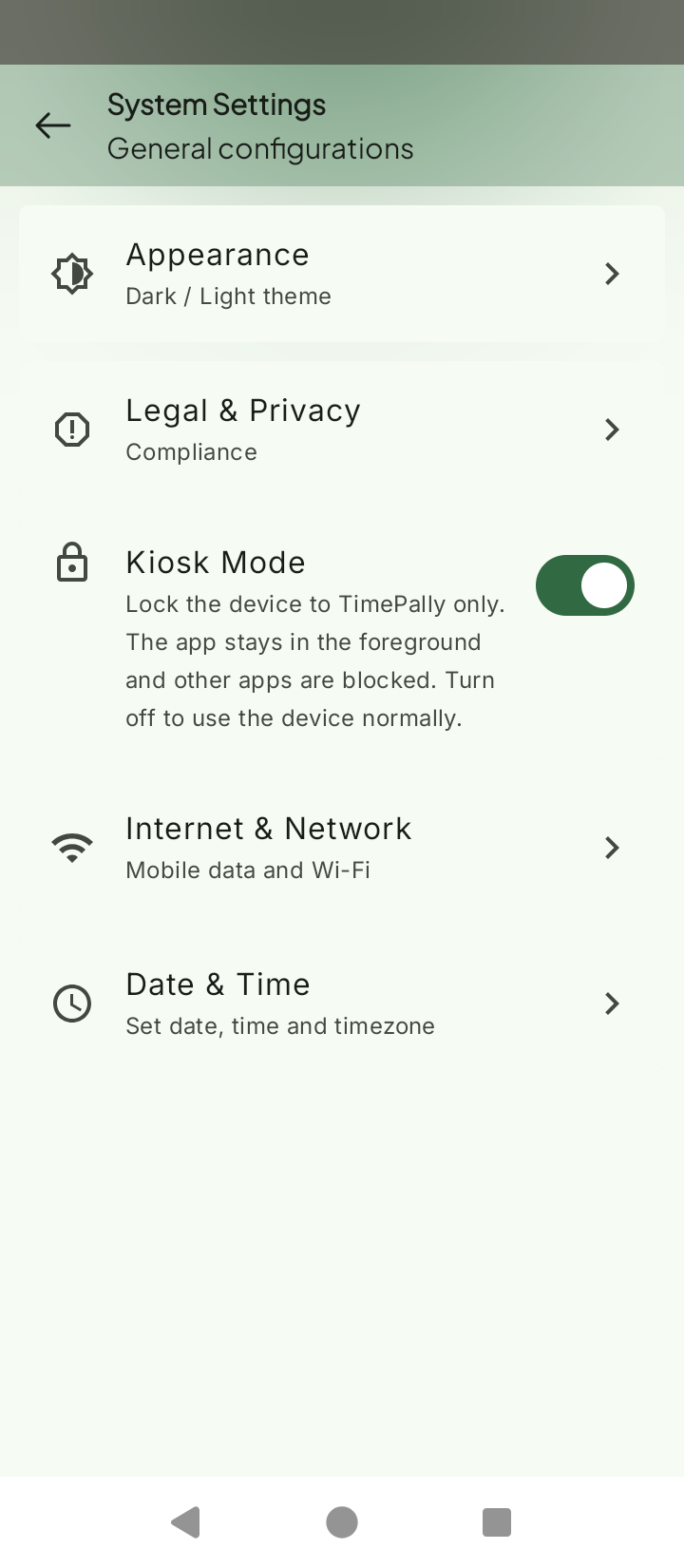
| ON (steady) | TimePally is pinned. Home, Recents, and other apps are blocked. The screen stays on indefinitely. Settings shows two extra rows: Internet & Network and Date & Time (more on these below). |
| Toggle OFF | Pin is released. The screen will dim and sleep like normal. |
| App killed / device cold-launched while Kiosk is ON | When TimePally is reopened, it automatically re-enters Kiosk Mode without prompting again. |
Enabling Kiosk Mode
- Open the TimePally app on the registered device.
- Tap the three-dot menu → Settings.
- Toggle the Kiosk Mode switch on.
- When Android asks “Pin screen?”, tap OK. This confirmation only appears the first time per app install.
That’s it, the device is now locked to TimePally.
Servicing the device without leaving Kiosk Mode
When Kiosk Mode is ON, two extra rows appear in the in-app Settings so an operator can fix common problems without un-pinning the device permanently.
Internet & Network
Opens the Android system panel for mobile data and Wi-Fi. Use this when:
- Wi-Fi has dropped and the device needs to be reconnected.
- You need to switch from mobile data to Wi-Fi (or vice versa).
- Pending syncs are stuck because the device is offline.
Tap Internet & Network, change what you need, then tap the system back gesture / back button to return, and TimePally automatically re-pins itself.
Android version: Internet & Network requires Android 10 (API 29) or newer. On older devices the row is hidden, and a network change requires temporarily turning Kiosk Mode off.
Date & Time
Opens the Android system Date & Time settings. Use this when:
- The device shows the wrong time after a reboot or SIM change.
- A factory-reset device needs the timezone set.
- TimePally is warning that the device clock has drifted.
Set the correct values, return to TimePally with the back gesture / button, and Kiosk Mode reapplies.
⚠ Tampering warning: changing the device clock will trigger TimePally’s built-in time-tampering detector. This is expected; the detector will log the change in the audit trail. Only use this row for genuine clock corrections, never to manipulate attendance times.
What survives, what doesn’t
| Event | Kiosk Mode survives? |
|---|---|
| Tapping out to Internet & Network or Date & Time row | ✅ Yes, re-pins on return |
| App backgrounded then re-foregrounded | ✅ Yes, re-pins on resume |
| Process killed by the OS (low memory) | ✅ Yes, re-pins on next launch |
| Device powered off and on again | ❌ No, see below |
After a reboot
Kiosk Mode does not auto-restore when the device powers back on. After a reboot the device boots to the normal Android launcher, and an operator must:
- Tap the TimePally app icon to launch it.
- The app remembers Kiosk Mode is ON and re-pins itself automatically.
This is intentional. On Tecno, Infinix, Itel, and other Transsion-family devices, aggressive battery management blocks most auto-start mechanisms unless the user manually disables battery optimisation for every app. Rather than ship a feature that silently fails on the most common deployment hardware, TimePally requires one manual tap after a reboot to re-engage Kiosk Mode reliably.
Operational implication: if a kiosk gets unplugged or the building loses power, expect to physically visit each device after the outage to re-open TimePally. Plan for this in your deployment.
Known limitations
These are deliberate design choices for the current release. None of them are bugs.
- No exit gating. Anyone with physical access to the device can flip Kiosk Mode off, or use the Internet & Network / Date & Time rows to leave the pinned context briefly. PIN/admin protection for Kiosk Mode is a planned feature.
- No auto-restore after reboot. See above, by design, to avoid silent failures on common OEMs.
- First-time pin dialog. Android always shows a “Pin screen?” confirmation the first time Kiosk Mode is enabled per app install. The operator must tap OK once at deployment time. This is an Android system dialog and cannot be suppressed.
- Emulators behave differently. If you’re piloting on an Android emulator, screen pinning may behave differently than on a real device. Always verify the deployment on the actual hardware you’ll be using.
Hardware compatibility
| Android version | Kiosk Mode support |
|---|---|
| Android 7.0+ (Nougat) | ✅ Full Kiosk Mode + Date & Time row |
| Android 10+ (Q) | ✅ Full Kiosk Mode + Date & Time row + Internet & Network row |
| Android 6.x and older | ❌ Not supported (TimePally requires Android 7.0+) |
Related
- Installing the App: permissions and battery-optimisation setup that should be done before enabling Kiosk Mode.
- Registering a Device: activation flow that must complete before Kiosk Mode is useful.
- Troubleshooting: what to do when the kiosk gets stuck or behaves unexpectedly.