Registering a Device
A freshly installed kiosk app knows nothing about your organisation. Pairing it takes one short trip through the web dashboard and one screen on the device itself.
1. Generate a code from the dashboard
On your computer:
- Sign in to app.timepally.com as an administrator.
- Open the Devices page from the sidebar. Full reference at /docs/devices.
- Click Add device.
- Pick the location the device will live at and the role it should take : Primary if this is the first or main device at the location, Secondary for additional terminals. See Primary vs Secondary Terminals if you’re not sure.
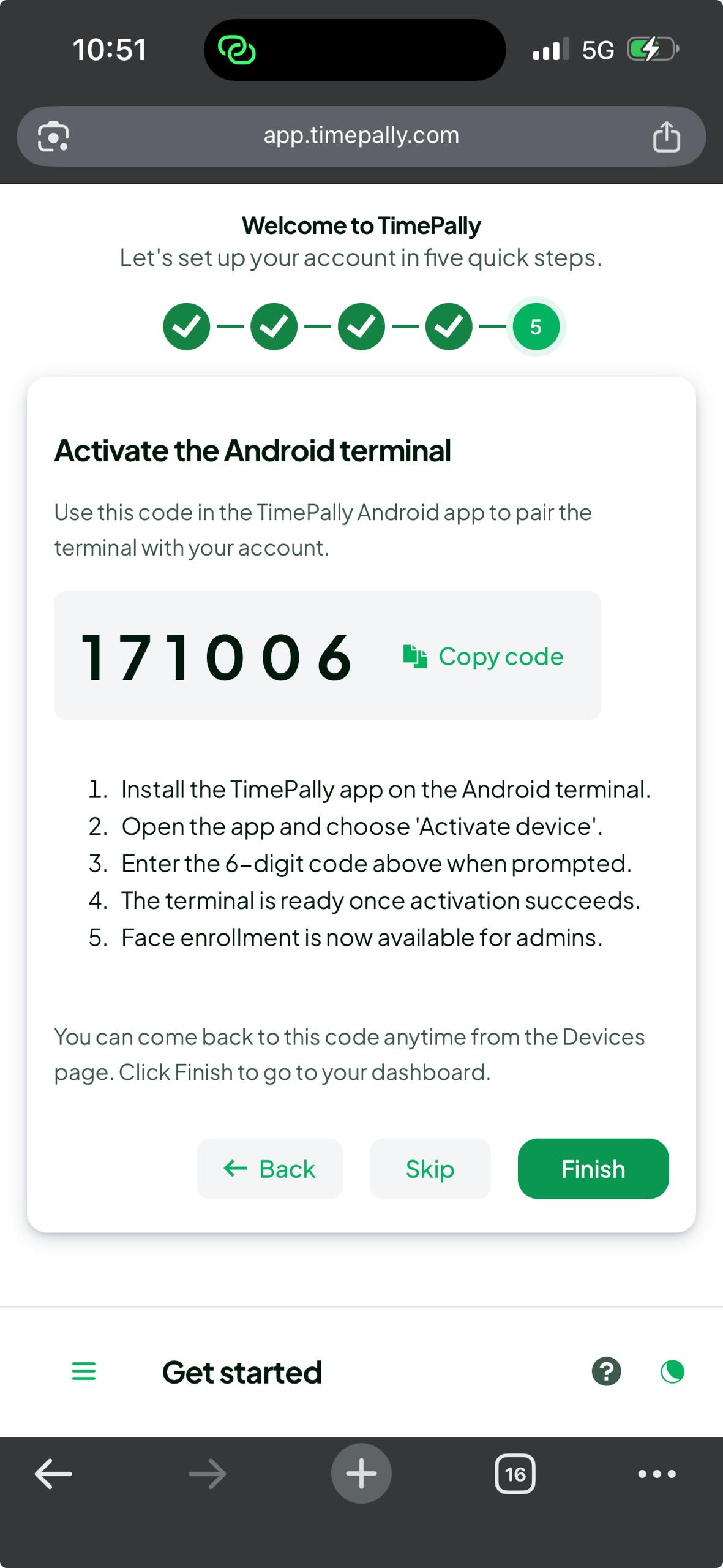
- Click Save. The dashboard shows a 6-digit alphanumeric code.
The code is single-use.
2. Enter the code on the kiosk
On the Android device:
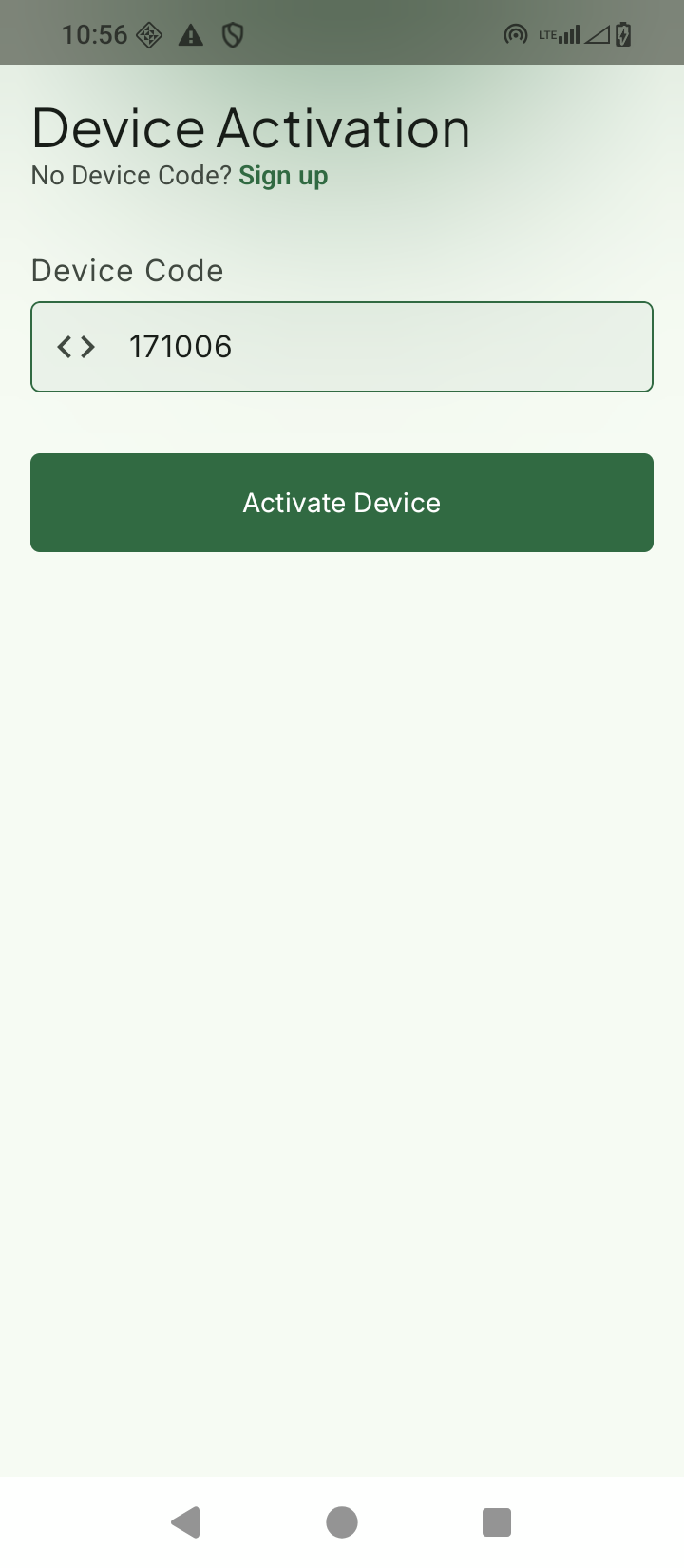
- Open the TimePally app. The first screen you see is Device Activation.
- Type the 6-digit code into the input field.
- Tap Activate.
The app sends the code together with the device’s fingerprint (model, OS version, app UUID) to TimePally. When the server accepts the code, the app:
- records its assigned role (Primary or Secondary),
- automatically picks up the location you chose in the dashboard, no manual location pick on the device,
- takes you to the kiosk home screen.
Common errors
| Error message | What it means | What to do |
|---|---|---|
| Code already used | Someone already activated a device with this code. | Generate a new code. Each code pairs exactly one device. |
| Device already registered | This device’s fingerprint is already tied to a different TimePally account. | Uninstall and reinstall the app, then try again. If the problem persists, contact support, a previous registration needs to be cleared. |
| No network connection | The device can’t reach app.timepally.com. | Connect to Wi-Fi or enable mobile data, then retry. Activation requires internet. |
| Subscription inactive | The organisation’s TimePally subscription is paused or expired. | See Subscription to bring it current. |
Next
After activation, decide who will enrol faces, that work happens on the Primary terminal only. Read Primary vs Secondary Terminals first if you have more than one device per location, then move on to Enrolling a Member’s Face.
Last updated on