Installing the App
This walks you through getting the kiosk app onto a fresh Android device end-to-end. Plan on about 5 minutes per device.
1. Download the app
Get the TimePally Attendance Kiosk APK from the link your admin provided, or from the Google Play Store once published. The package name is com.timepally.
2. Allow install from unknown sources (sideload only)
Skip this step if you’re installing from Play Store. If you got an APK file directly:
- Open the APK with your file manager or browser.
- Android will prompt you to enable installation from the app that’s opening the file (Chrome, Files, etc.).
- Tap Settings and toggle Allow from this source on.
- Go back and tap Install.
3. Grant required permissions
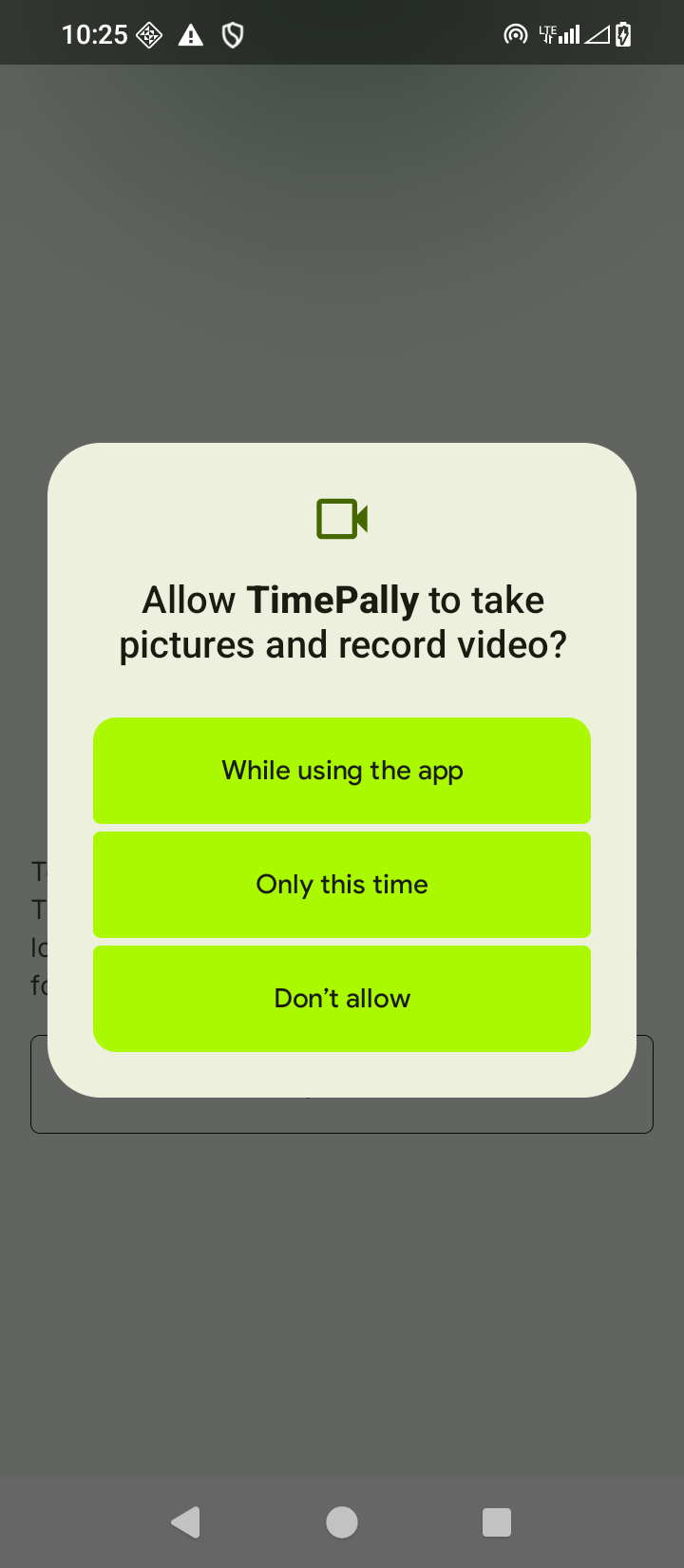
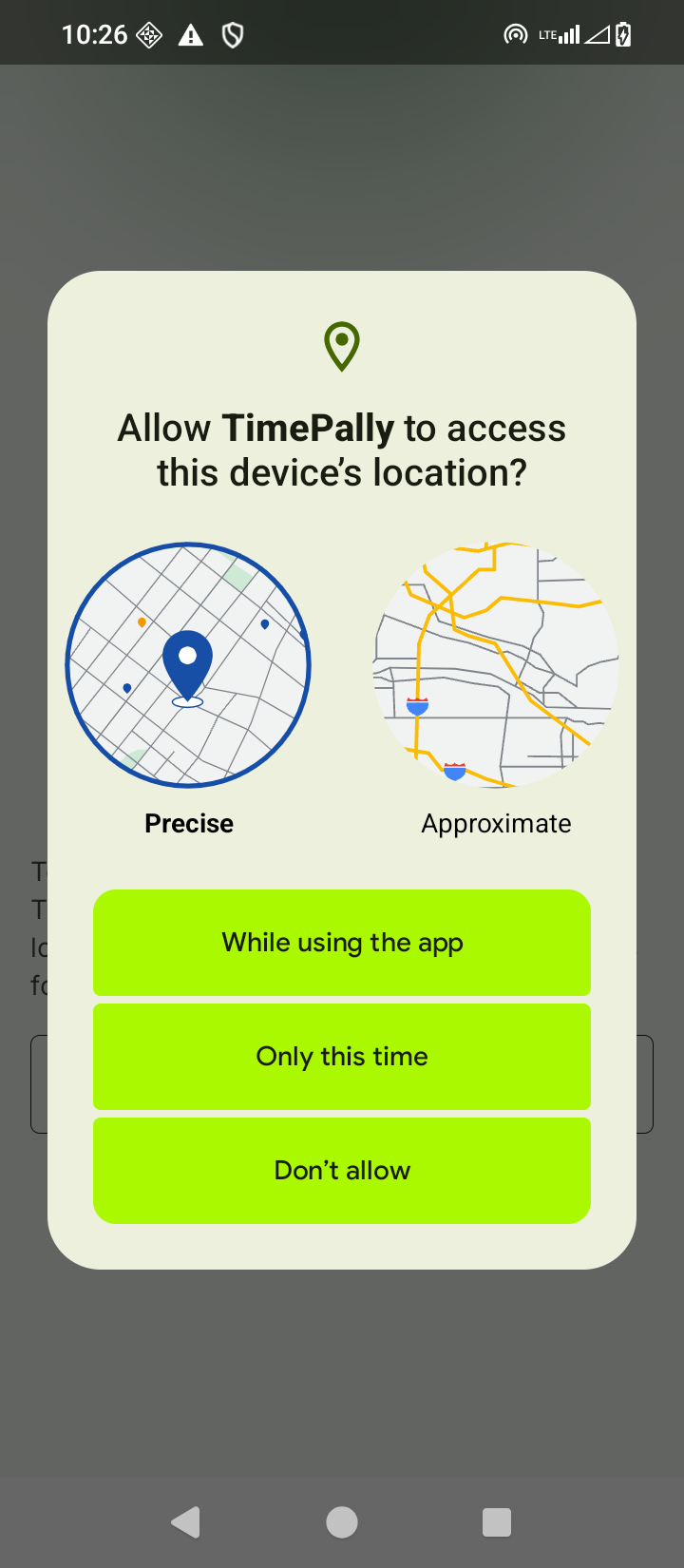
When you open the app the first time, accept the following permission prompts:
- Camera : required. Face capture and verification can’t work without it.
- Location : required. Each clock event is stamped with the device’s location for audit purposes (see Privacy Policy).
- Notifications (Android 13 and newer) recommended. Lets TimePally surface sync errors and subscription alerts.
If you accidentally deny a permission, go to Settings → Apps → TimePally → Permissions and enable it manually, then reopen the app.
Next
Once the app is installed, register the device against your TimePally account, then enable Kiosk Mode to lock it into the foreground.
Last updated on