Daily Clock-In & Clock-Out
This page is for members. Print it and tape it next to the kiosk.
Three steps
- Tap “Clock In” when you arrive (or “Clock Out” when you leave).
- Stand in front of the kiosk about an arm’s length away. Look straight at the screen.
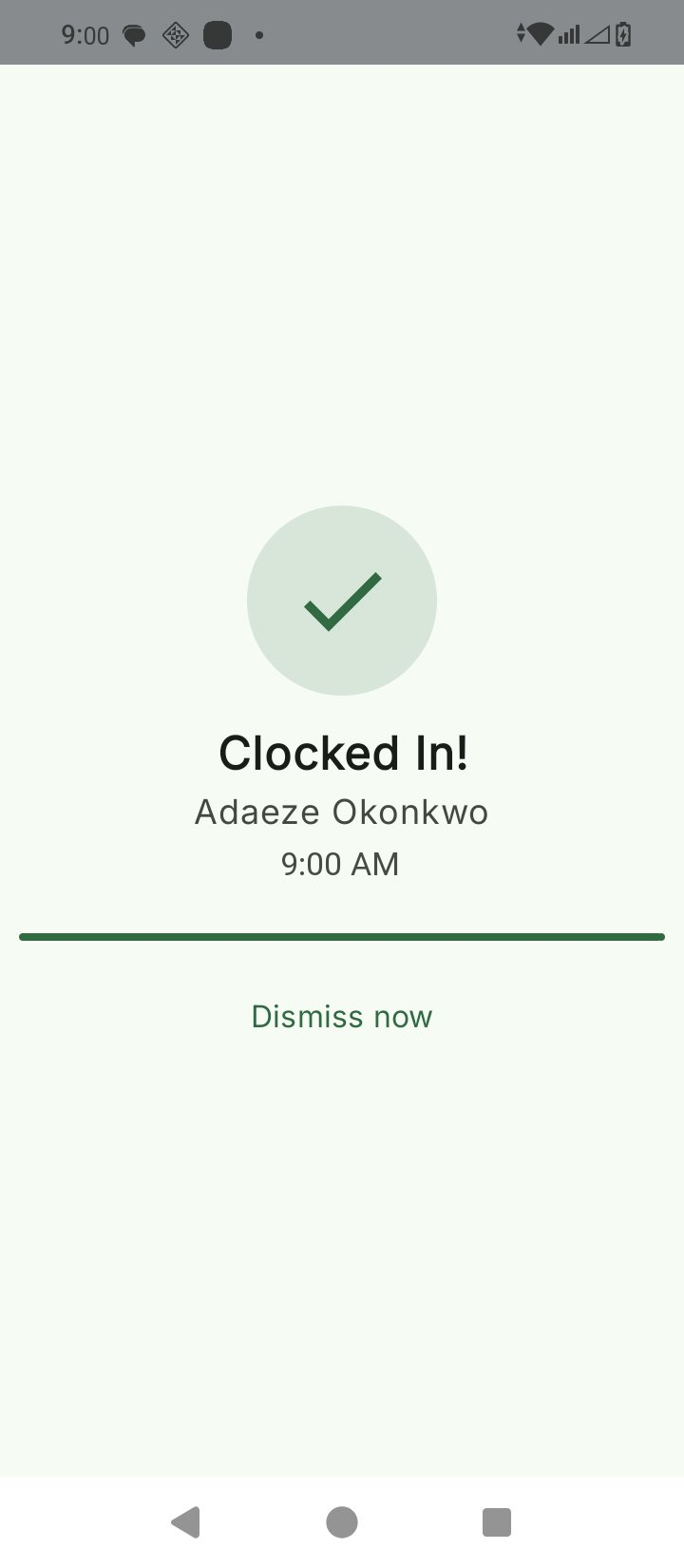
- Wait for the green tick. You’re done.
What each screen means
| Screen | What it means | What to do |
|---|---|---|
| 🟢 Green tick (“Verified!”) | You’re clocked in (or out). | Walk through. You’re done. |
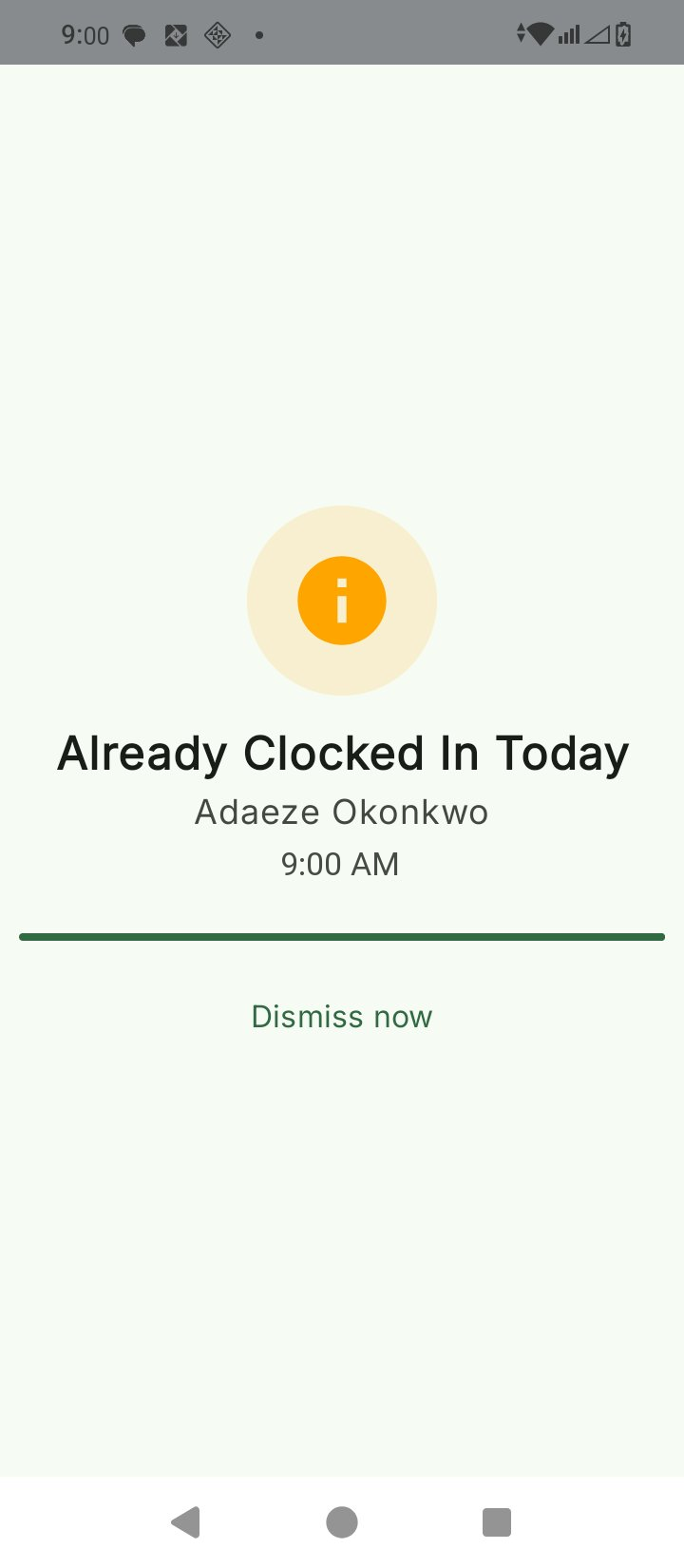
| 🟡 “Already clocked in today” | You already did this earlier. | Walk through, no action needed. |
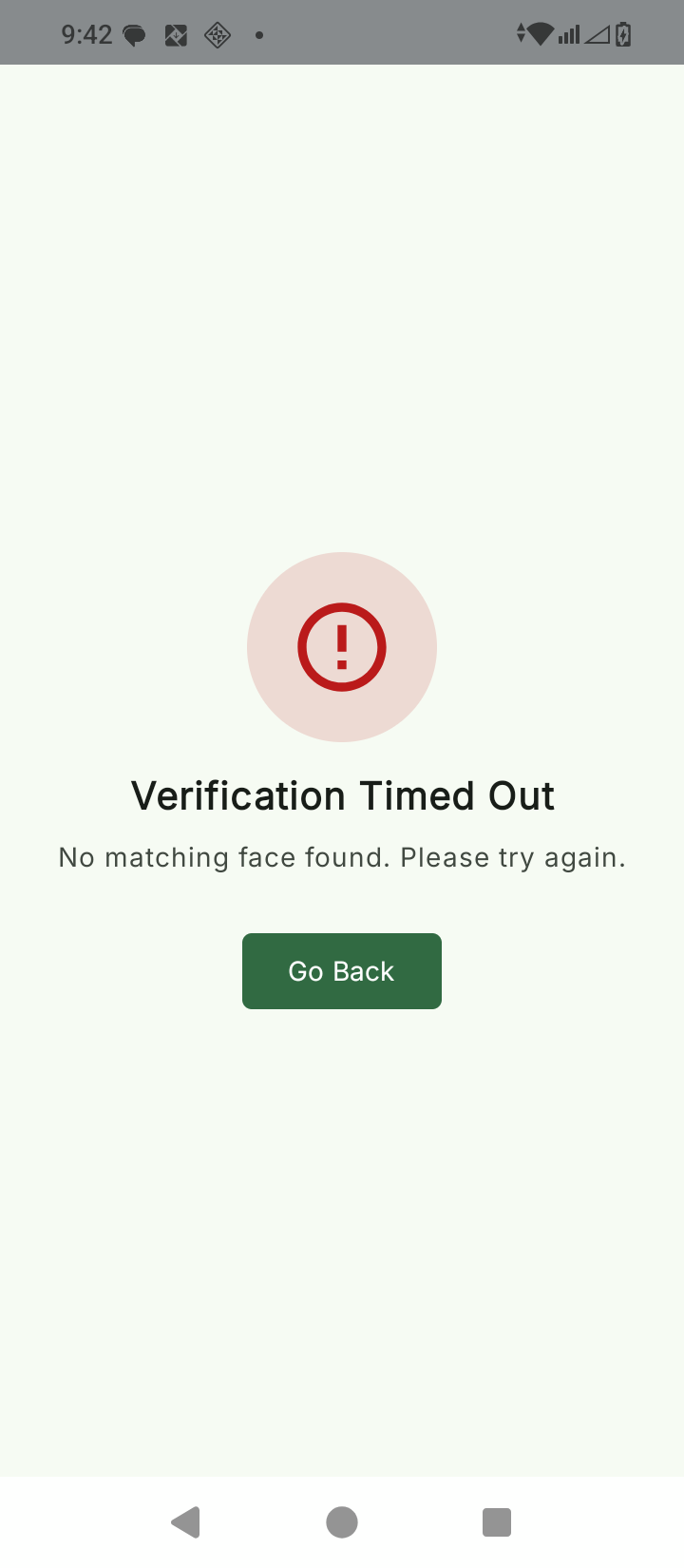
| 🔴 “Verification timed out” | The kiosk waited 30 seconds and didn’t recognise you. | Try once more. If it still fails, see the admin, don’t try someone else’s profile. |
| 🔴 “Liveness check failed” | The kiosk saw a photo or screen instead of a live face. | Stand in front of the camera with your actual face. |
If the kiosk doesn’t recognise you
- Try once more. Make sure your face is centred and the light is on you.
- Take off hats or sunglasses and try again.
- See the admin. They can re-enrol your face on the Primary terminal.
Never let anyone else clock in for you, and never clock in for anyone else. Every attempt is logged with a photo, and proxy clock-ins are treated as a security violation.
A note for admins
Members don’t need to know any of the details below. Keep this for yourself:
- The kiosk waits 30 seconds for a face to match before timing out.
- A member can only clock in once per calendar day. A second attempt shows the duplicate message and doesn’t write a second record. The same applies to clock-out.
- Records made while offline are queued on the device and uploaded as soon as connectivity returns. See Offline Mode & Sync.
- Every clock event is stamped with the device’s GPS location at the moment of capture. See Privacy Policy.
Last updated on